 Tattoo Stencil
 Buy me a coffee
Image to stencil
Free Tattoo Stencil Maker
Turn a JPG, PNG, or WebP image into a tattoo stencil. Refine the linework and download a PNG or a sized PDF for printing.
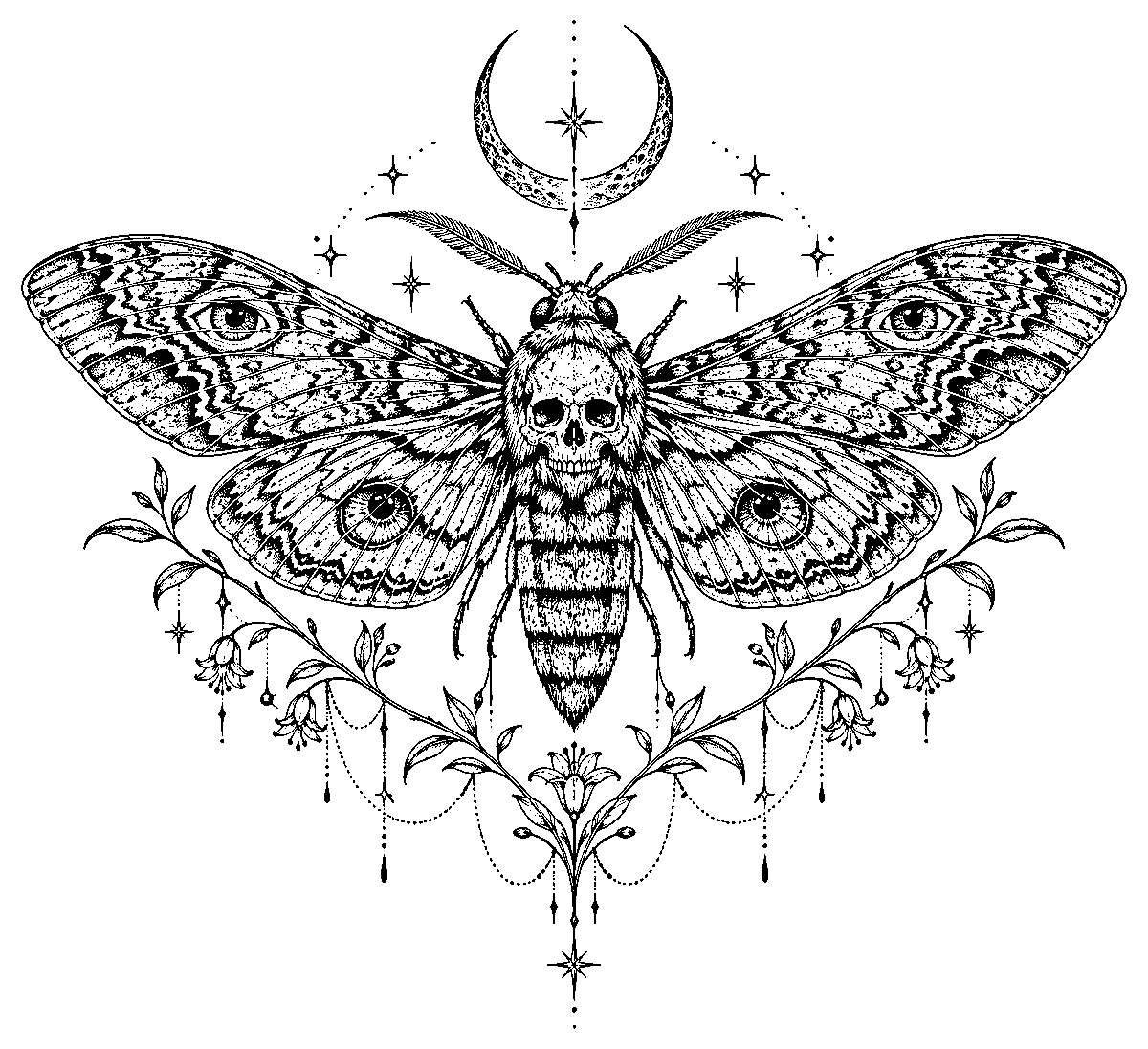

Free online tool
Make a tattoo stencil
- Instant mode stays on your device
- Actual-size print layouts
- Free PNG & PDF · No signup
Your linework
Your next piece starts here.
Upload your reference to reveal the lines.
Refine, compare, and make it yours.
03 / THE FINAL DETAILS
Make it print-ready.
Print at 100% / Actual Size. Measure the calibration ruler first. Check your stencil with a qualified tattoo artist.
From upload to paper
How it works
Choose an image
Select a JPG, PNG, or WebP image. A sharp photo or a high-contrast scan gives the tool clearer edges to work with.
Refine the lines
Choose how to handle your image, compare the result with the original, and repair details with the pen or eraser.
Set the size and export
Enter the width or height, check the mirror setting, and download a PNG or an actual-size PDF.
Printing at actual size
Check the paper before the transfer
Match the PDF to your paper size, print the calibration sheet at 100%, and check its reference line with a ruler. Use a plain-paper copy to check the stencil size and direction before following your transfer equipment’s instructions.
Printing guideDesign collection
Tattoo Stencils
Explore engraved geometry, blackwork placement, and fine-line detail before working with your own reference.
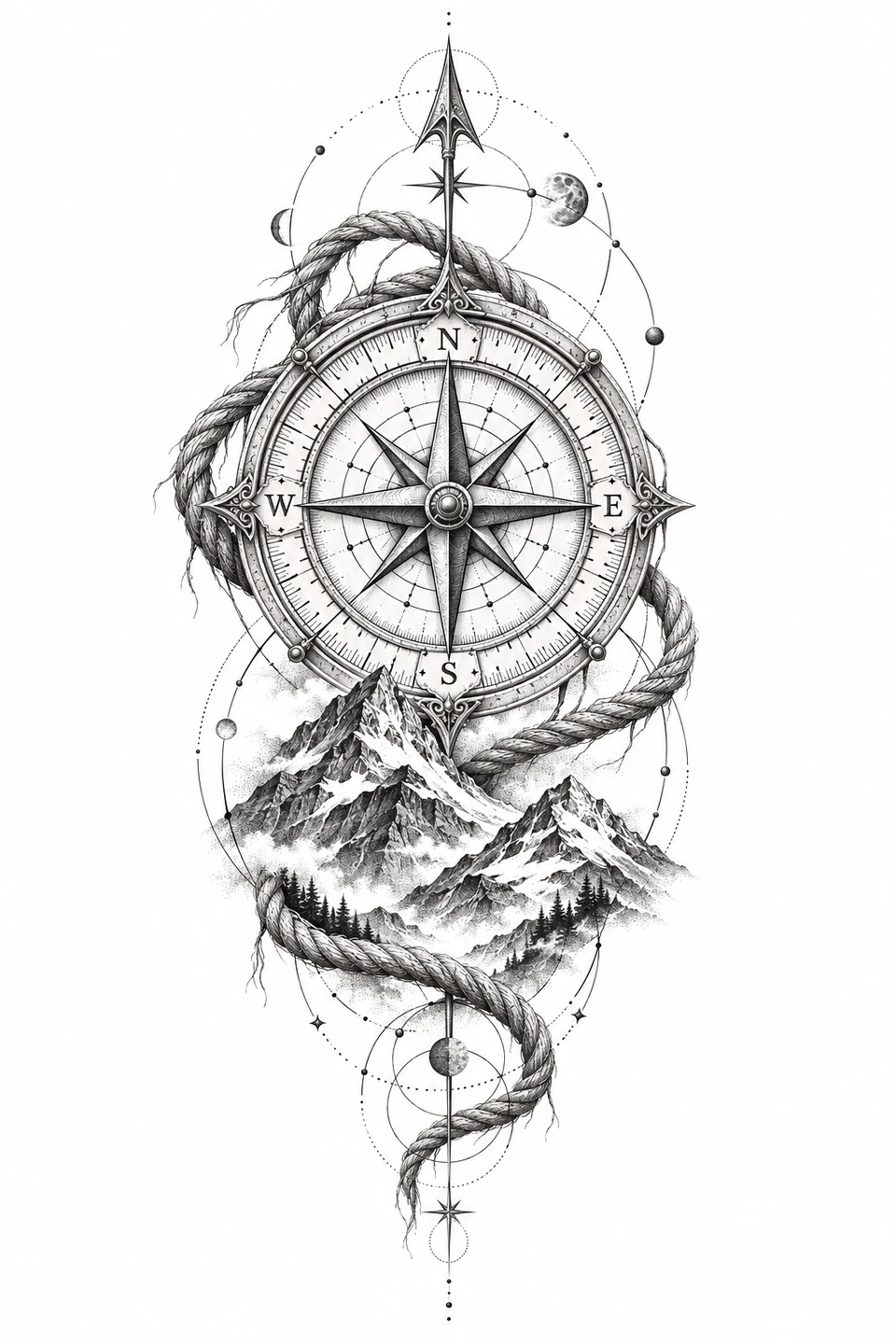
Geometric
Compass Tattoo
An engraved compass rose framed by alpine peaks, knotted rope, and celestial orbits.
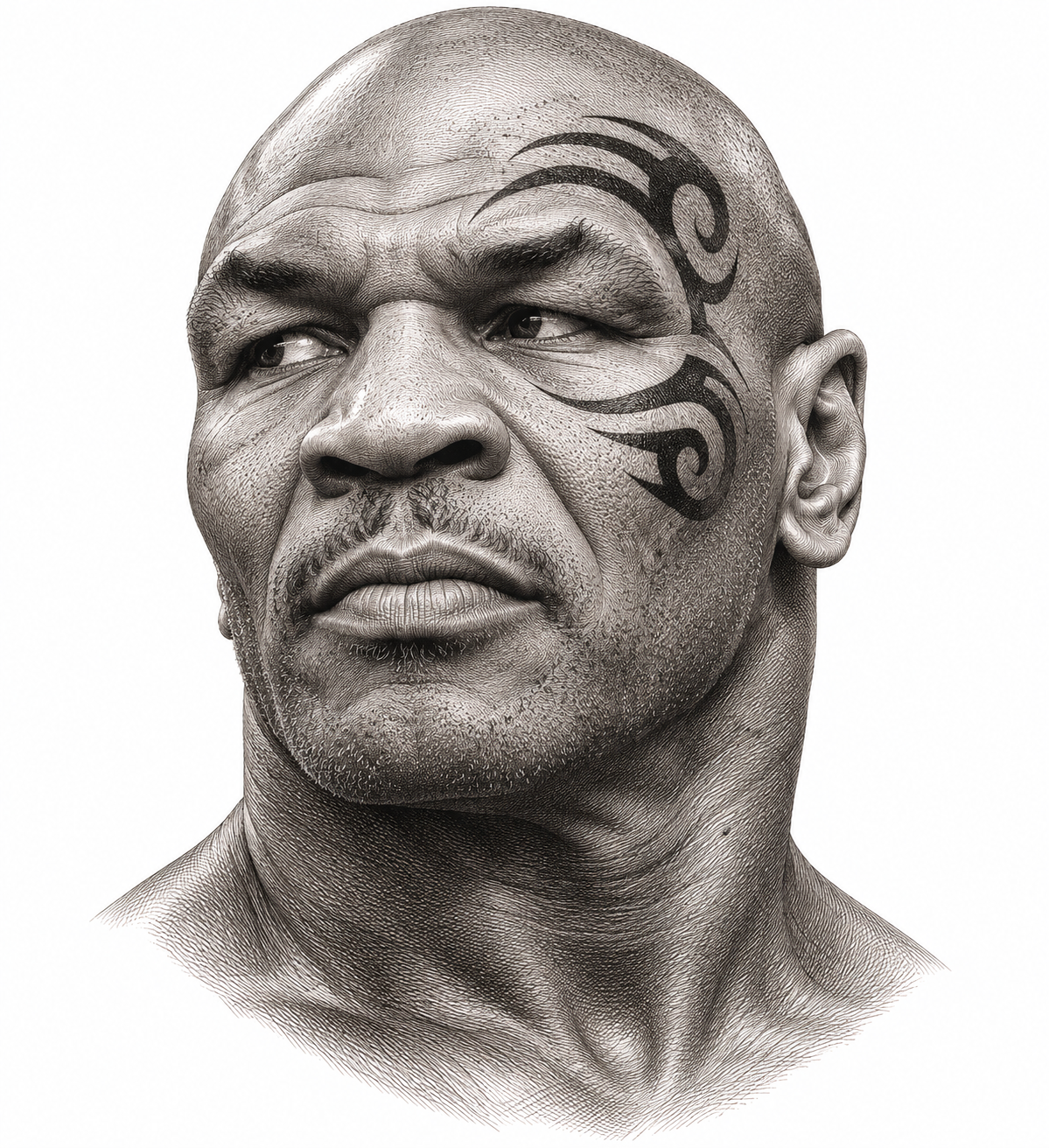
Tattoo History
Mike Tyson Tattoo
The curved black design Victor Whitmill tattooed around Mike Tyson’s left eye in 2003.
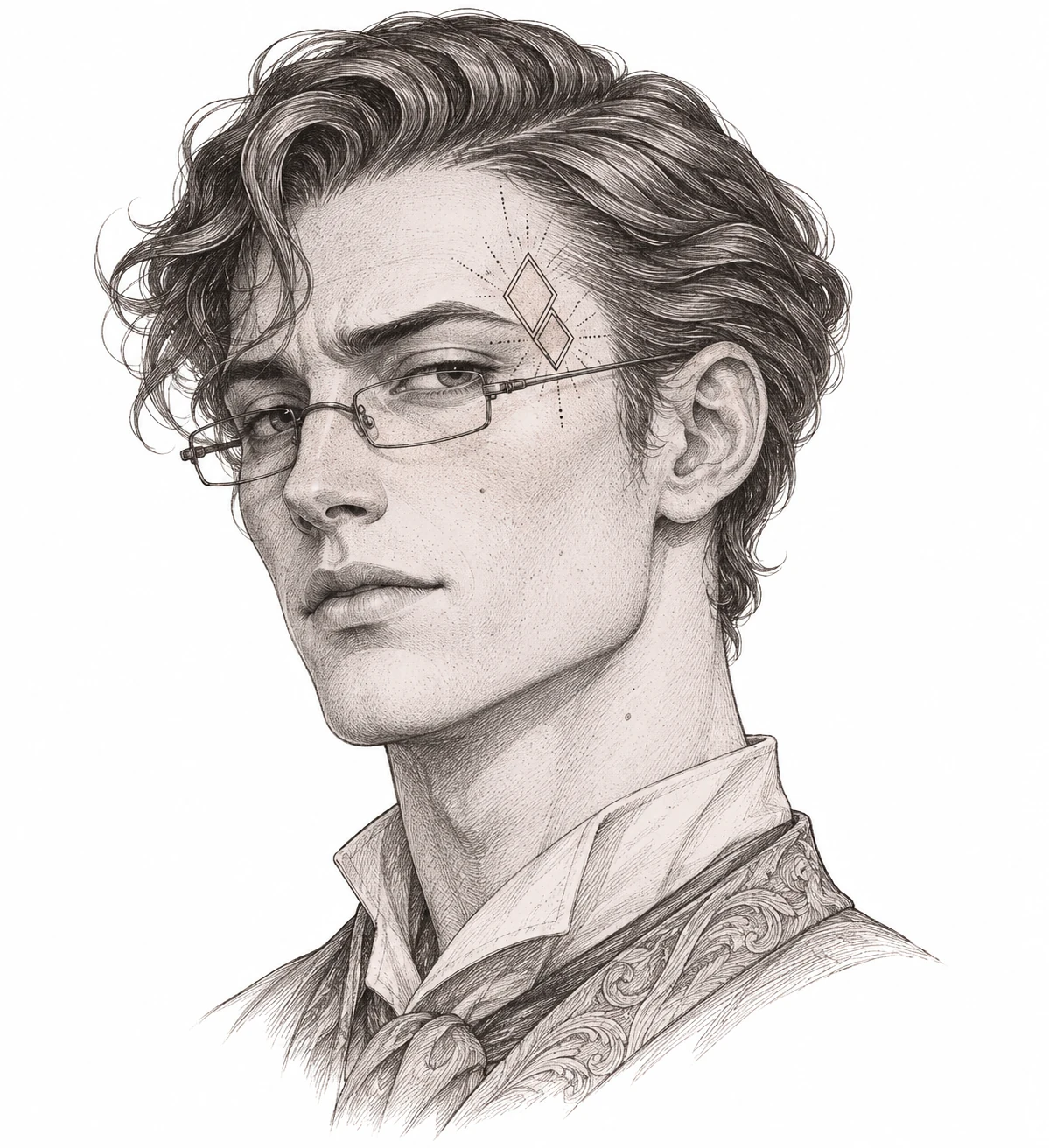
Portrait
Stu Tattoo
A fine-line temple placement study inspired by Stu Price in The Hangover Part II.
Common questions
Tattoo stencil maker FAQ
Is the tattoo stencil maker free?
Yes. You can upload, adjust, and export PNG or PDF without an account.
Does the tool upload my photo?
Instant mode processes images in your browser. If AI studio is available, it sends your image to Hugging Face only after you consent and choose Create AI stencil. Shared GPU queues and daily quotas apply. Save any result before closing the page.
Which image formats work best?
Use a JPG, PNG, or WebP image up to 20 MB. Start with a sharp photo or a high-contrast scan. Busy backgrounds and deep shadows can produce extra lines.
What if background removal cuts out part of my image?
Choose Adjust subject to mark an area to keep or exclude, then review the selection. For a scan on a plain background, turning off Remove background often preserves more of the original ink.
Should I mirror my stencil?
Check your transfer method and equipment. Text and asymmetric details make it easy to spot a flipped result. Use the final preview and a plain-paper test before using transfer materials.